
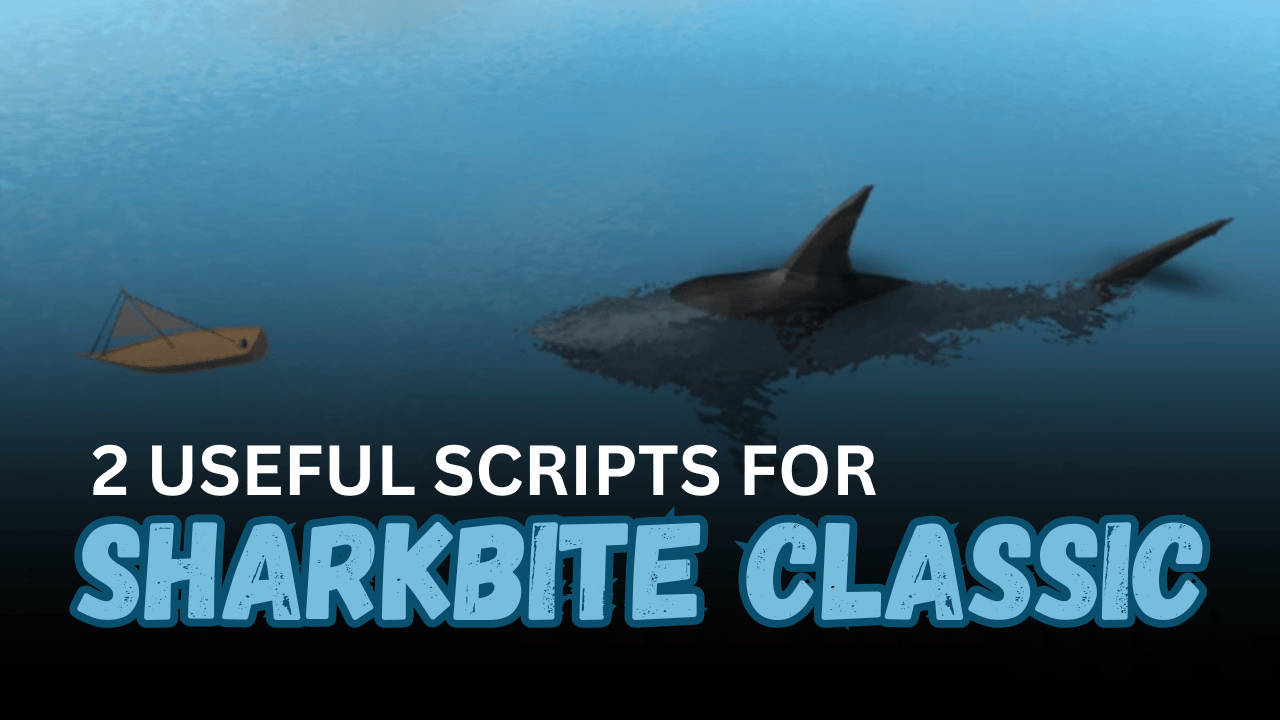
SharkBite Classic is a Roblox survival game where one player becomes the shark while the others use boats to stay alive. Survivors must avoid attacks, protect their boats, and search the ocean for useful rewards. The shark, meanwhile, must locate and destroy the remaining players before the round ends.
The scripts below provide visibility and tracking tools such as Shark ESP, Boat ESP, and Chest Drop highlighting. One script is completely keyless and includes its full open Lua code, while the other uses a larger menu with mobile support.
01. SharkBite Keyless ESP Script – Sharks, Boats & Chest Drop
This keyless Lua script focuses on object visibility. It creates highlighted outlines for sharks and boats, allowing players to see them more clearly through the map. It also includes a Chest Drop option, although the original description notes that this feature may not always work.
The script uses a Rayfield interface with separate ESP and Auto tabs. New sharks or boats added during the game are automatically detected and prepared for highlighting.
| Feature | Details |
|---|---|
| Shark ESP | Highlights sharks with a red overlay |
| Boat ESP | Highlights boats with a blue overlay |
| Chest Drop ESP | Highlights the supported reward chest |
| Always-on-Top Display | Shows highlights through other objects |
| ESP Toggles | Turns shark and boat highlights on or off |
| Automatic Detection | Adds ESP to newly spawned boats and sharks |
| Rayfield Interface | Uses a clean tab-based menu |
| Separate ESP Tab | Keeps visibility tools organized |
| Separate Auto Tab | Contains the Chest Drop option |
| Keyless Access | Does not require a key system |
| Full Lua Code | Complete script is provided directly |
| Mobile Status | Mobile compatibility was not tested |
02. InfinityX SharkBite Script – Multi-Feature Mobile Menu
InfinityX is a larger SharkBite script hub designed to provide several game-related tools through one interface. The supplied listing does not include a complete feature list, but the script is listed as supporting mobile devices and several popular executors.
Unlike the first script, InfinityX uses a key system before the menu can be accessed.
| Feature | Details |
| SharkBite Support | Designed specifically for SharkBite Classic |
| Multi-Feature Hub | Provides multiple tools in one menu |
| Mobile Support | Listed as compatible with mobile devices |
| Simple Loader | Runs through one short Lua command |
| Executor Compatibility | Supports several popular executors |
| Menu Interface | Loads features through a script hub |
| Key System | Requires a key before use |
| Older Script | May need testing with the latest game version |
Supported Executors: Volt, Wave, Delta, Codex, and Synapse Z.
How to Use These Scripts
- Open Roblox and launch SharkBite Classic.
- Wait until your character, boats, shark, and current map have fully loaded.
- Open a compatible Roblox Lua executor.
- Copy the complete Lua code from the script you want to use.
- Paste the script into the executor’s code editor.
- Press the execute button and wait for the interface to appear.
- Enable Shark ESP first to confirm that the keyless script is working.
- Turn on Boat ESP if you want to track vehicles around the ocean.
- Enable Chest Drop only when a chest event or supported object is available.
- Complete the key process before using InfinityX.
- Rejoin the game and execute the script again if the ESP stops updating.
- Test older scripts carefully because game updates may affect some features.
Benefits of Using Scripts in Roblox
Better Shark Awareness
Shark ESP highlights the shark with a clear overlay, making it easier to follow its location. This can help survivors react sooner when danger approaches.
Easier Boat Tracking
Boat ESP shows vehicles around the map, even when they are partly hidden or far away. Players can quickly locate nearby transport or follow other survivors.
Improved Chest Visibility
Chest highlighting can make special reward objects easier to notice during supported events. This reduces the time spent searching the ocean manually.
Clearer Map Information
Always-on-top highlights display important objects through walls, water, or other map parts. This gives players a clearer view of activity during each round.
Simple Feature Controls
Individual toggles allow players to enable only the ESP options they need. This keeps the interface easier to manage and avoids unnecessary visual clutter.
Automatic Object Updates
The keyless script detects newly spawned boats and sharks automatically. Players do not need to restart the menu every time a new object appears.
Choice Between Two Menus
Players can use the lightweight keyless ESP script or test the larger InfinityX hub. This provides a choice between simple tracking and a broader feature menu.